


SReaderFocus readingGet the app

iPhone · iPad · Mac · Android

Read faster.Keep focus.

SReader turns books, articles, PDFs, and notes into a focused reading session. The highlighted line stays in the middle of the screen and the text moves past it at your pace. Press play and keep going.

Get the app

No account · No ads · No feed · Your library stays on your device

Try it in your browser

The real reader, right on this page. Nothing to install.

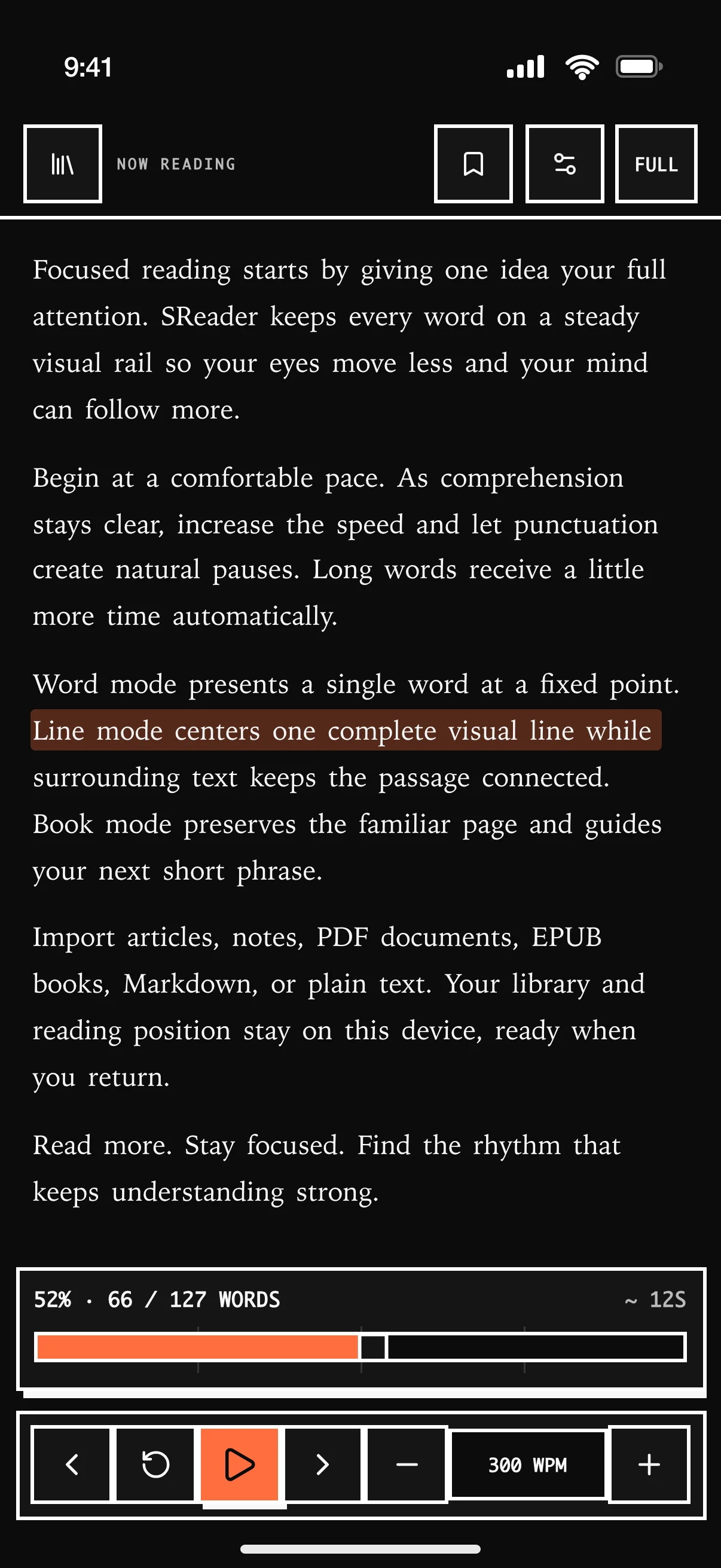
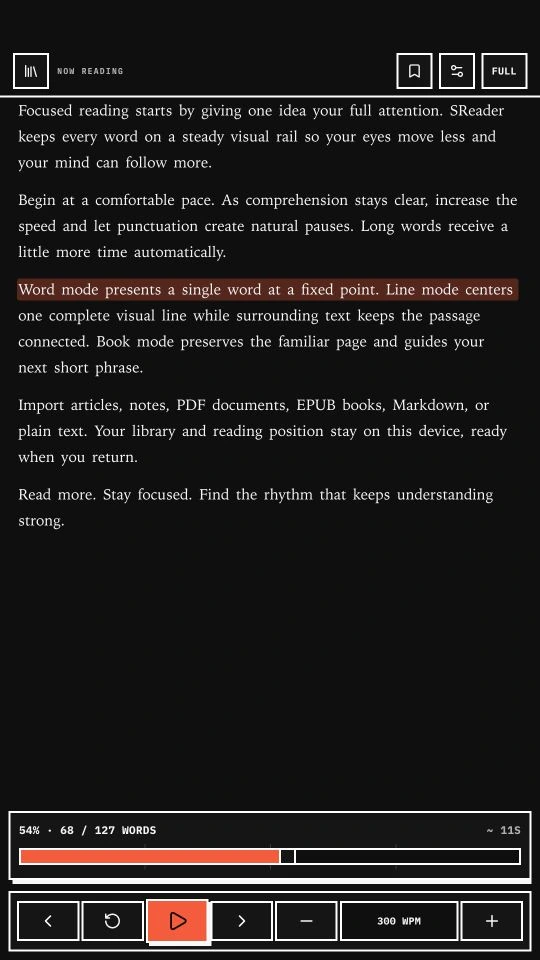
SReader on iPhone in line mode: the top bar with library, bookmark, settings, and Full, the highlighted line held in the middle of the text, the progress rail, and the playback bar
Brings in
  • TXT
  • Markdown
  • EPUB
  • PDF
  • Paste
  • Article link
  • TXT
  • Markdown
  • EPUB
  • PDF
  • Paste
  • Article link
  • TXT
  • Markdown
  • EPUB
  • PDF
  • Paste
  • Article link

01 · Three ways to read

Line. Word. Book.

Line mode keeps the highlighted line in the middle of the screen and scrolls the text past it. Word mode shows one word at a time for the fastest pace. Book mode keeps the whole page on screen and marks the phrase you are on. Switch whenever you like. Your place, pace, and progress carry over.

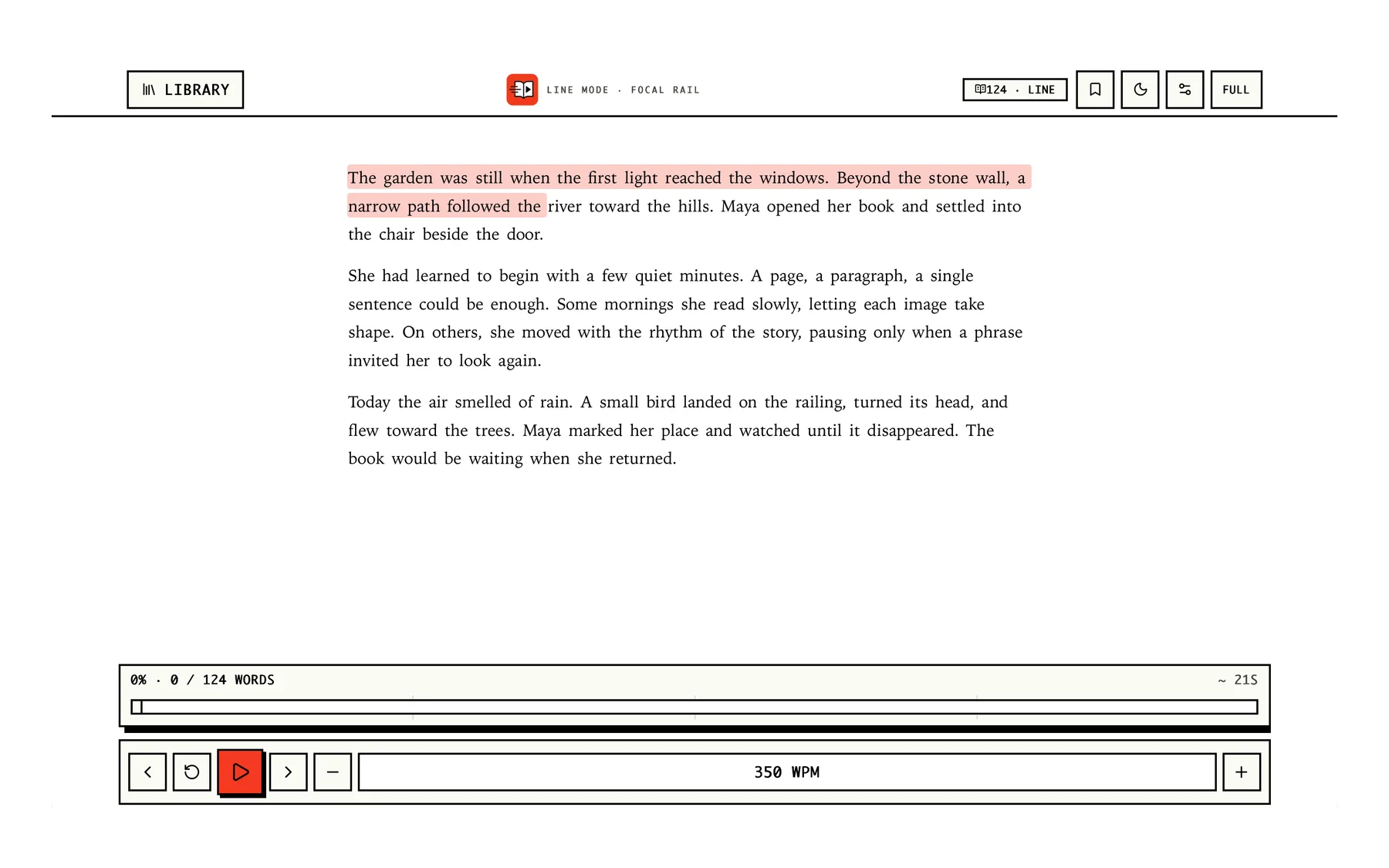
Line mode with the highlighted line held in the middle of the screen inside a full page of text

01

Line

The line stays put. The page moves.

The highlighted line holds the middle of the screen while the text scrolls past it at your pace. Your eyes never travel, and the paragraph around the line stays in view for context. The default, and the easiest place to start.
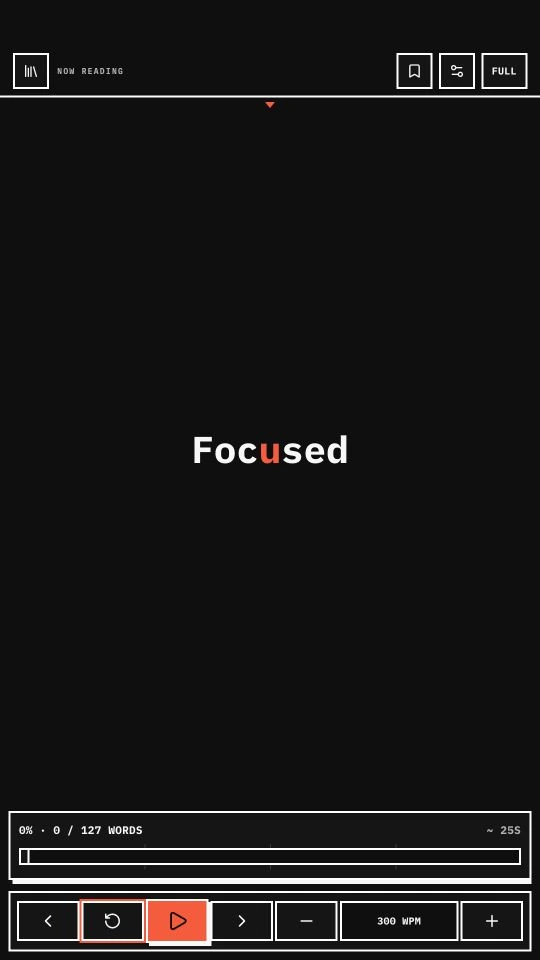
Word mode showing the single word Focused centered on a dark screen

02

Word

One word. One place to look.

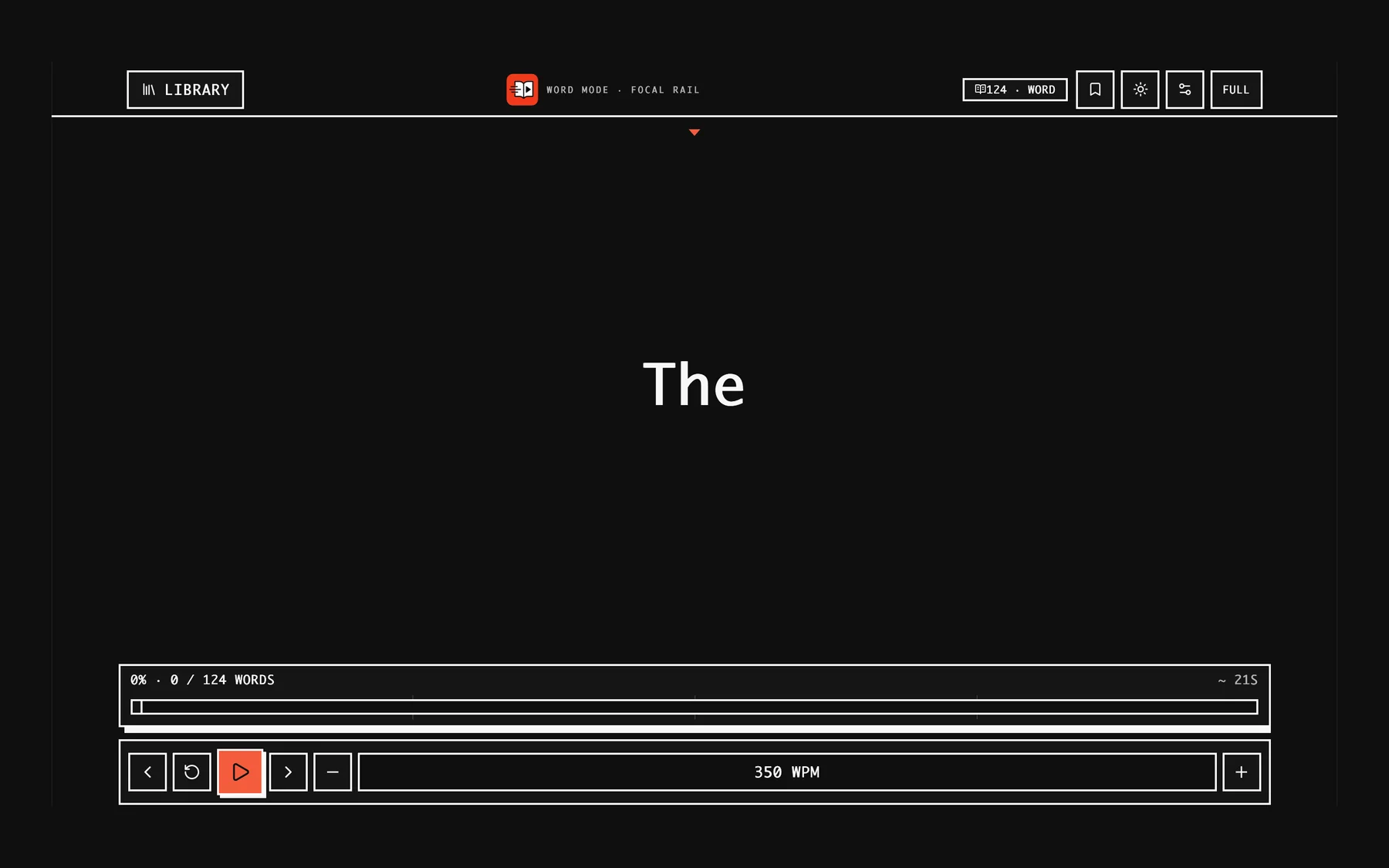
Every word lands on the same focal point, so your eyes stop travelling and your attention stays on the text. Long words and punctuation get a little extra time on their own.

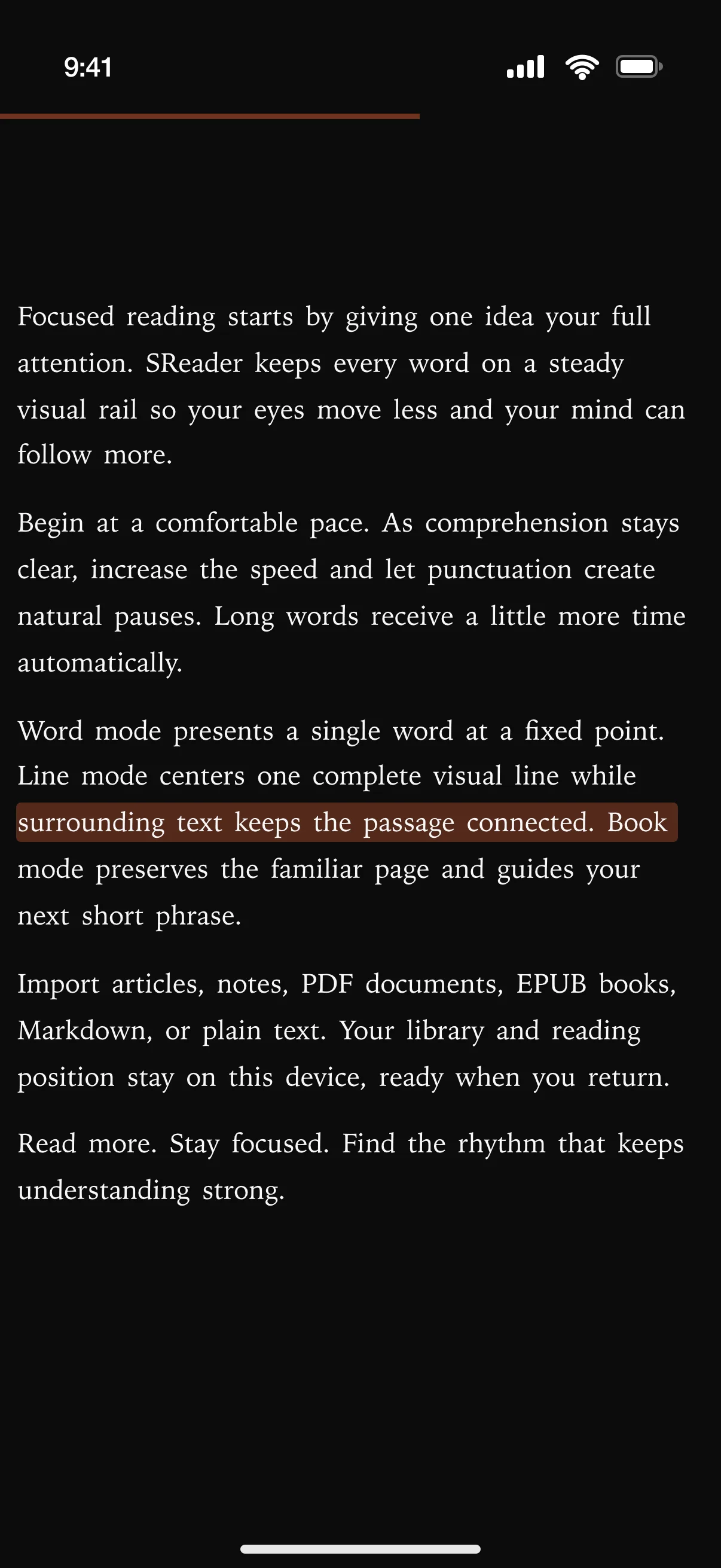
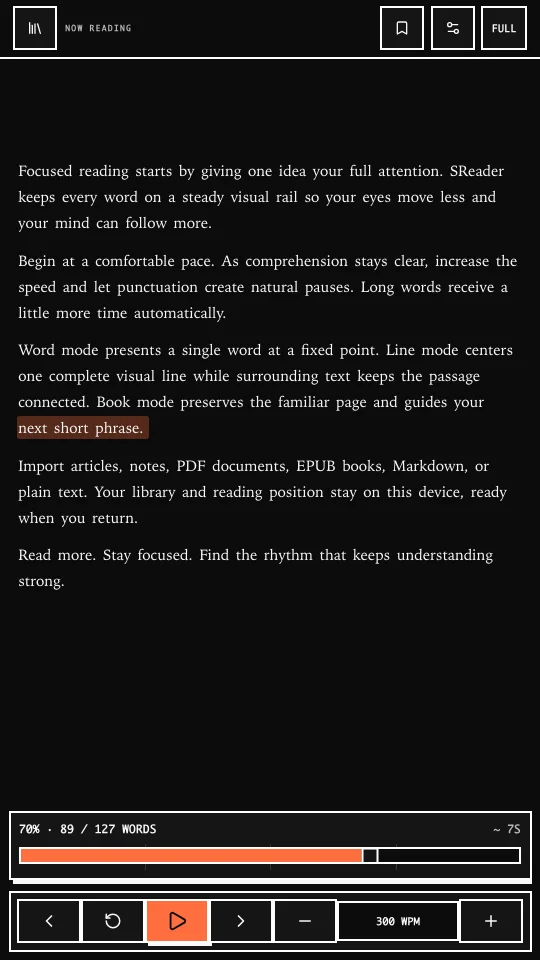
Book mode marking a three-word phrase inside a full page of text

03

Book

The whole page, with your place marked.

The full page stays on screen, laid out the way a book is, and a short phrase is highlighted as you read. Nothing moves, so you always know exactly where you are.

On your phone

The whole reader in one hand.

Everything you need sits under the text or in the top bar, so a session starts with one tap and ends exactly where you left it.

Line
Stays in the middle of the screen. The text scrolls, your eyes do not.
Rail
How far you are, how many words are read, and roughly how long is left.
Bar
Back, restart, play, forward, and the speed, all under the text.
Top
Library, bookmark, settings, and Full mode, one tap away.
iPhone · Line mode
The full SReader screen on iPhone in line mode: top bar, the highlighted line centered on the page, progress rail, and playback bar

02 · Try it

Try it right here.

This is the real reader with a short sample loaded. Press start and follow the line. Use the settings to change the mode or the speed.

Now reading

Line mode · 350 wpm

Reading fast is easier when your eyes stay still. SReader holds the line in one place and moves the text past it. Start slow. When it feels easy, turn the speed up. Commas and periods add a small pause on their own. Word mode shows one word at a time. Line mode lights up one line. Book mode keeps the whole page and marks your place. Bring in a book, an article, or a note. Your library stays on your device. That is it. Pick a pace, press play, and read.

0% · 0 / 91 words

~ 15s

350 WPM

Space plays and pauses · ← → skip · M changes mode

iPhone · Full mode
SReader in Full mode on iPhone: only the text, with the highlighted line held in the middle of the screen and no bars or buttons

03 · Full mode

Switch off the noise.

Full mode turns the whole page into a play and pause control. The bars step out of the way, the highlighted line keeps the middle of the screen, and the text keeps moving. Tap to play, tap to pause, X to leave.

  • Auto-saveProgress saves on its own. Drop a bookmark when a passage matters.
  • SeekDrag the progress rail, or pick a word in Line and Book mode to jump there.
  • ShortcutsSpace plays, arrows seek, M switches mode, B bookmarks, and ? shows help.

04 · Mac and iPad

Room to read.

SReader runs as a native app on Mac and iPad. On the bigger screen the page opens up to the width you set, with line spacing and type size to match. Add a keyboard and playback moves to the keys, so the pointer can rest.

  • SpacePlay / Pause
  • ← →Seek
  • MMode
  • BBookmark
  • ?Help
Mac · Line modeSReader on Mac in line mode, highlighting one line of a passage at 350 words per minute

05 · Bring in any text

Files. Paste. Links.

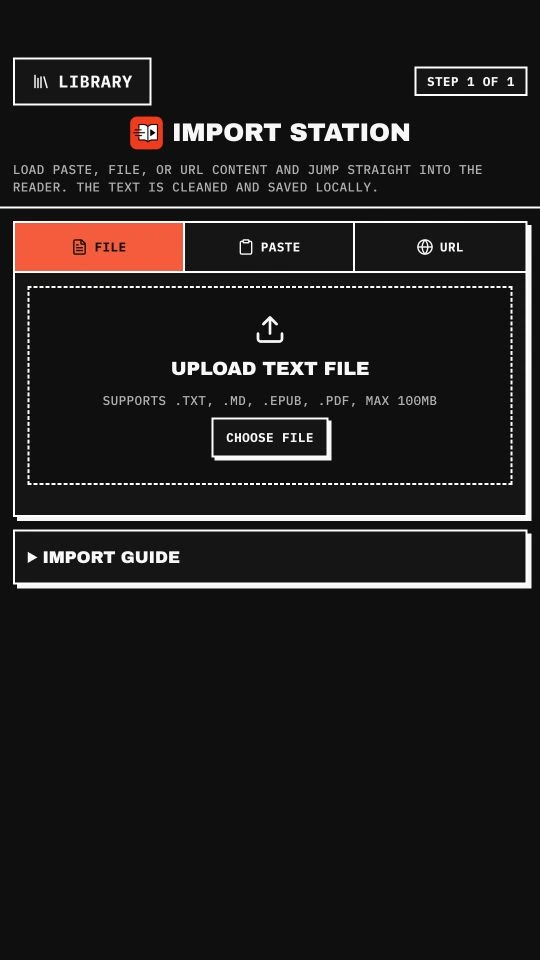
Drop in a TXT, Markdown, EPUB, or PDF. Paste a passage from anywhere. Or hand SReader an article link. The text is cleaned up, saved to your library, and ready to read.

File
.txt .md .epub .pdf, up to 100 MB
Paste
Any text on your clipboard
Link
Articles, cleaned of clutter
Library
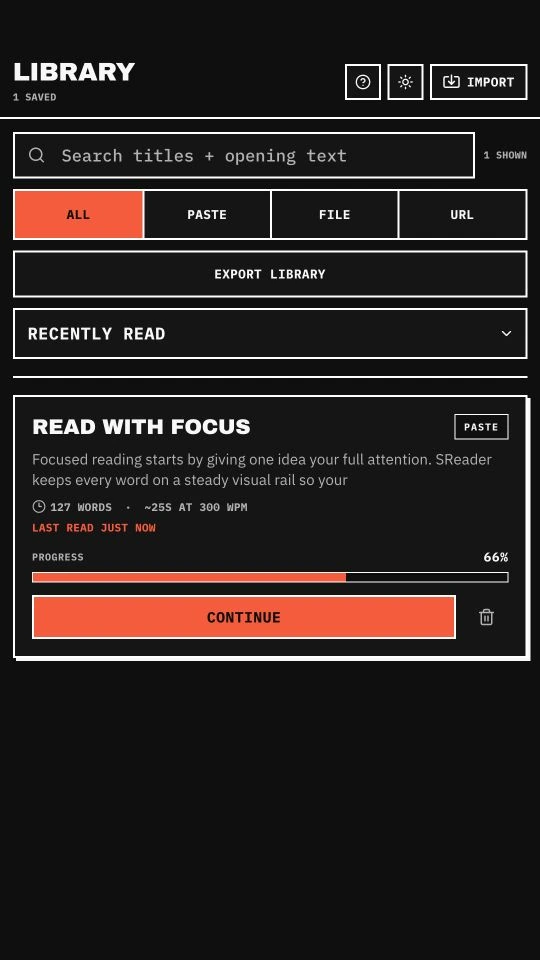
Search, resume, and export
SReader import station with File, Paste, and URL tabs
Import station
SReader library with a saved text at 66 percent and a Continue button
Your library

06 · Set your pace

Your speed. Your page.

Speed up when it feels easy. Slow down when the ideas need room. Every control is one tap from the text.

  • SpeedSet words per minute with a tap or a slider. Punctuation adds a natural pause.
  • Text sizeScale the type up or down without leaving the page.
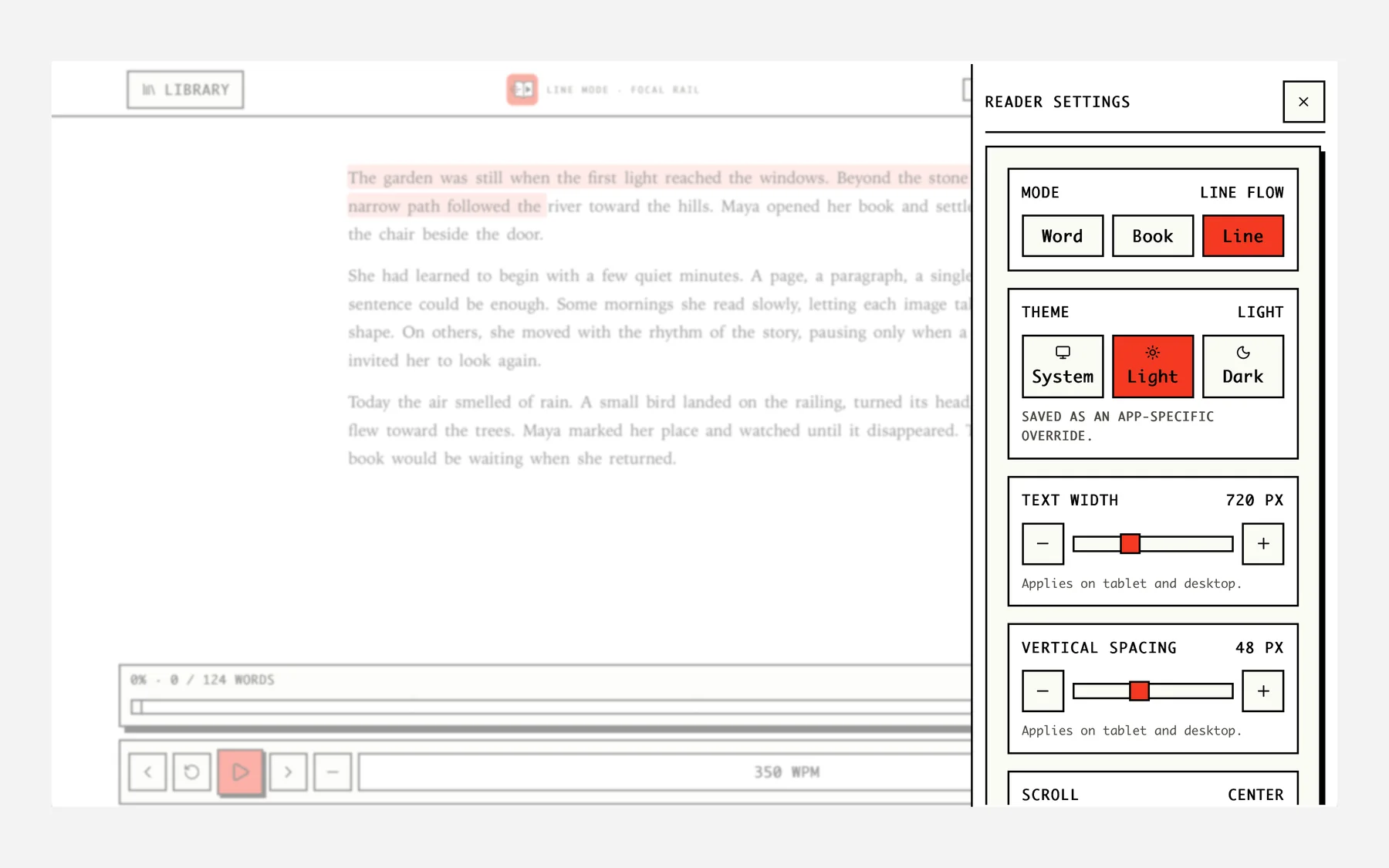
  • Width and spacingChoose the reading width and line spacing on tablet and desktop.
  • ThemeSystem, Light, or Dark. Your choice is remembered.
  • BookmarksMark a spot and jump straight back to it.
  • ResumeYour place is saved when you leave. Open the library and continue where you stopped.
Mac · Reader settingsSReader reader settings on Mac with mode, theme, text width, and spacing controls

07 · A local library

Your library stays on your device.

  • No account
  • No ads
  • No feed

Text, settings, bookmarks, and progress are stored locally. There is no account to create. Files and pasted text are processed on your device. Opening an article link fetches that article from its website.

Read the privacy policy
Mac · Word mode · DarkSReader on Mac in dark word mode showing a single word on a black page

Make room for one more chapter.

Start with an article, a chapter, or anything you have been meaning to finish.